A versioning system is implemented to allow creating, viewing, and editing of query template versions.
When you open a template in Template Designer, select the history icon  from the fixed action column to access the Version History drop down with the major versions created with Save with comment button, and the minor ones created and grouped in between with the Save button.
Prerequisites
You have created at least one query template in the Template Designer, refer to Creating a query template.
Proceed as follows
- In the Data Explorer, select the desired query template to explore.
→ The Explore view is displayed:
- Select the Open in Template Designer button:
→ The Details tab opens: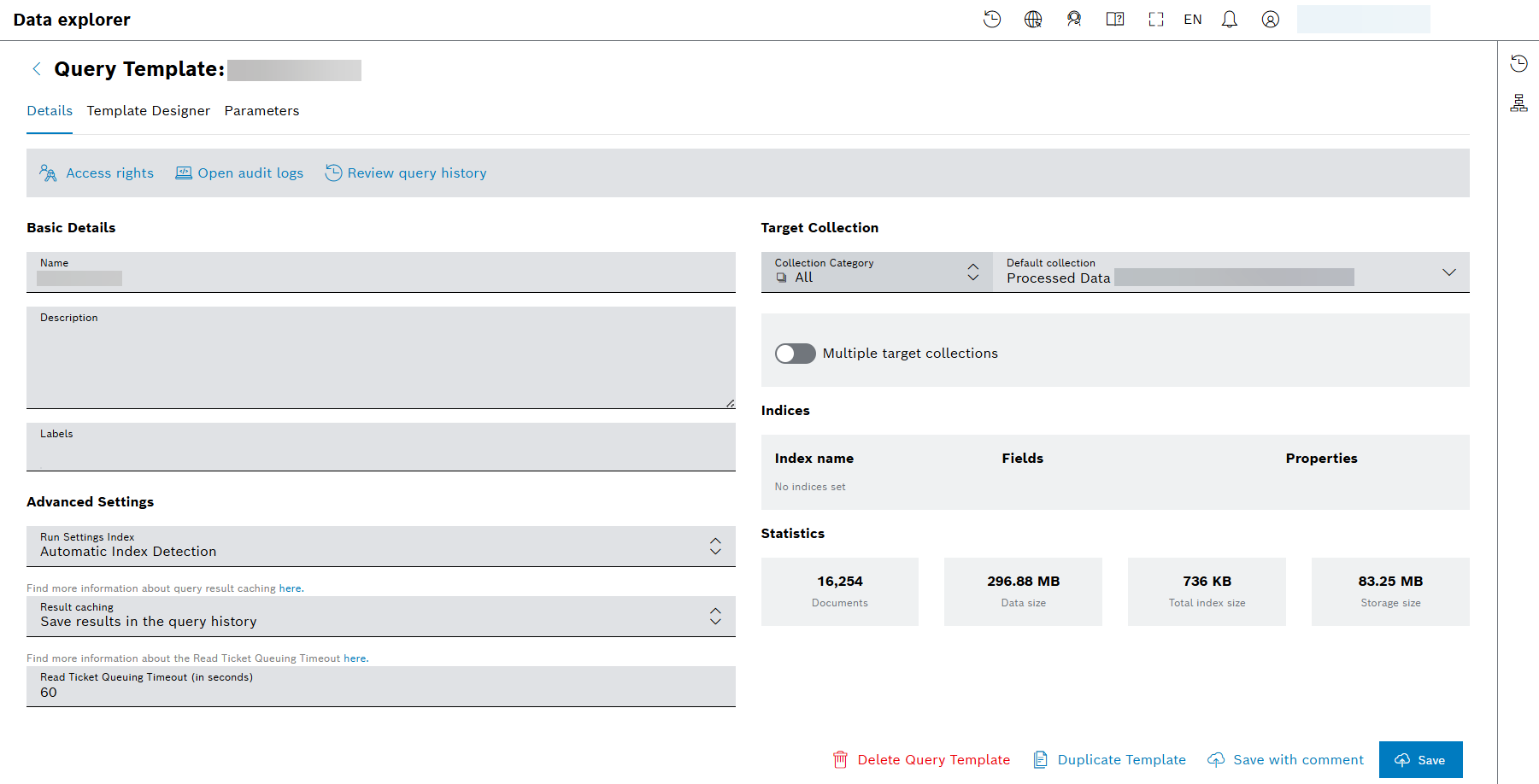
- From the upper right corner, select the history icon :
→ the Version History drop down is displayed: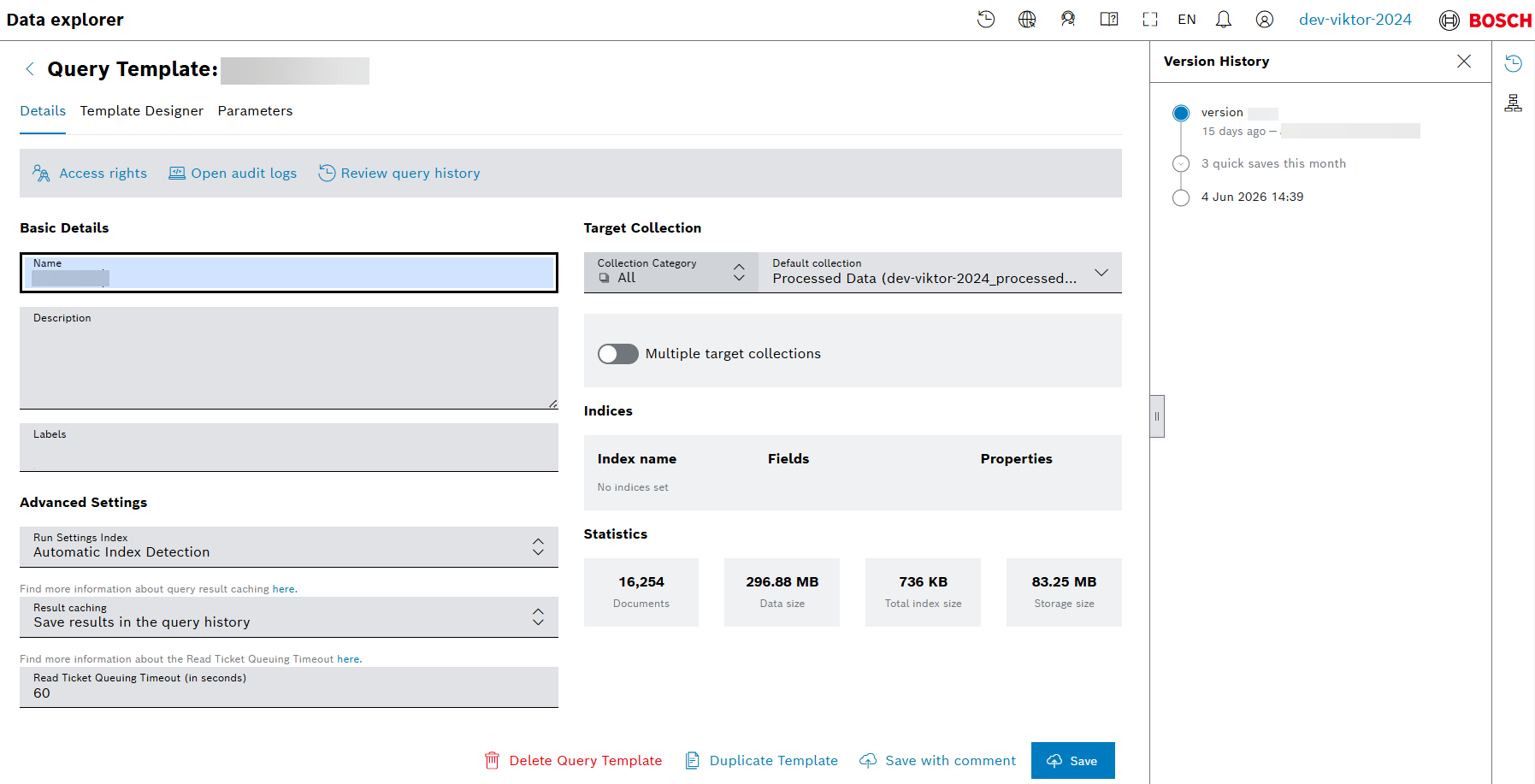
- Each time you want to keep your query template changes, a new version is created. If the change is a minor one, use the Save button to create the co called 'quick save' version. If the 'quick save' versions are more than one, they will be grouped together until a formal version is created with the Save with comment button. Refer to the example above with the '3 quick saves this month' group.
- Optionally, you can compare, view, edit, and restore a version by selecting it:
→ If you select the last version, only the Edit button appears. For the rest of the versions, the Compare, View version, Edit and Restore buttons are available: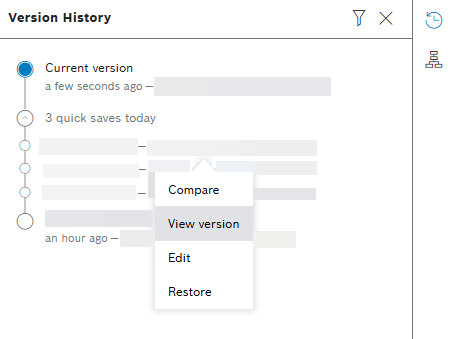
- To examine in a read only mode previous versions, select the View version button:
→ The read only version of the query template opens to allow you examine all the details and parameters: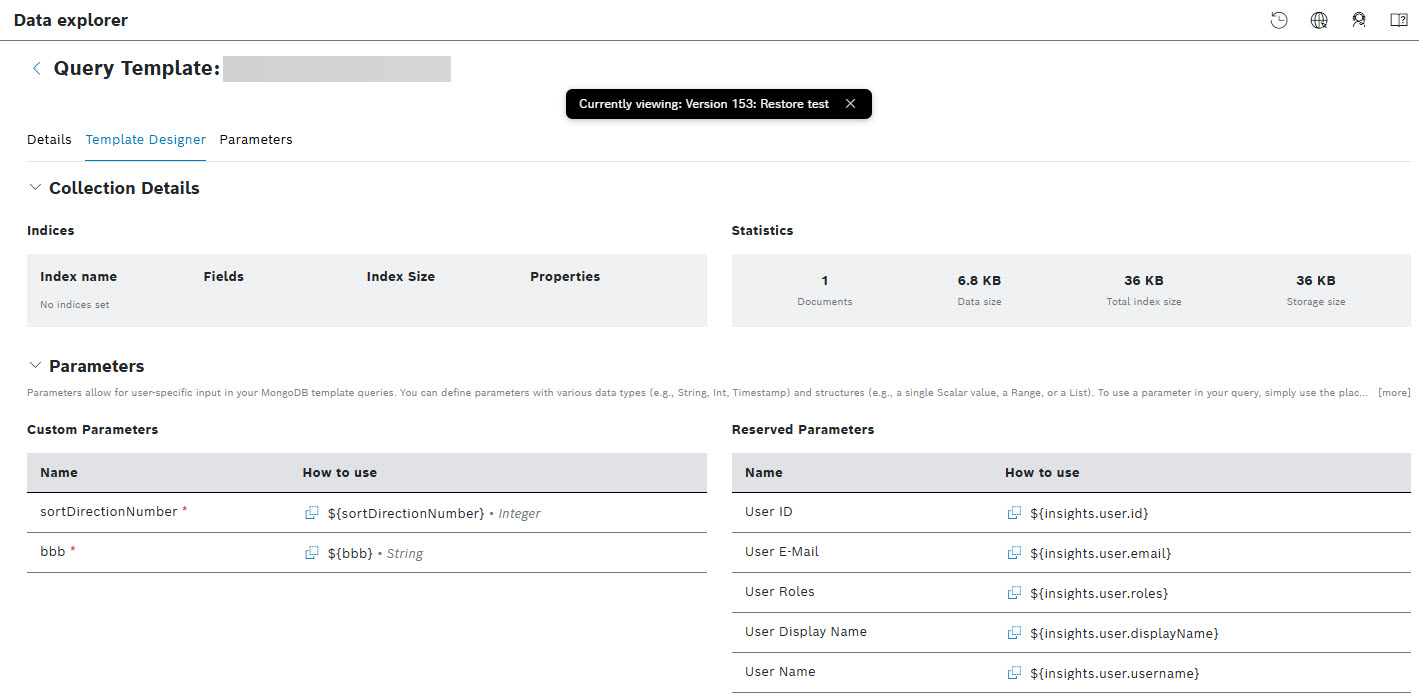
To exit the View version mode and return to the latest version, close the notification bar that displays the number of the version you are currently inspecting: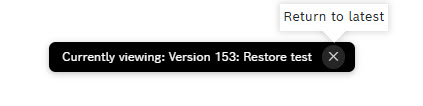
- To compare two versions:
- Select a version to view using the View version button as described above:
→ The notification bar in black that appears displays the number of the version you are currently inspecting. The version is marked with little blue circle in the Version History list: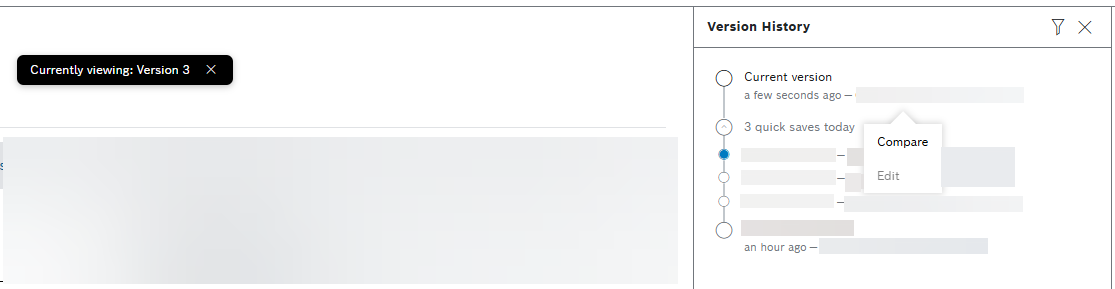
- Select another version from the Version History list to compare with using the Compare button as shown above.
→ The differences between the versions are marked with different color: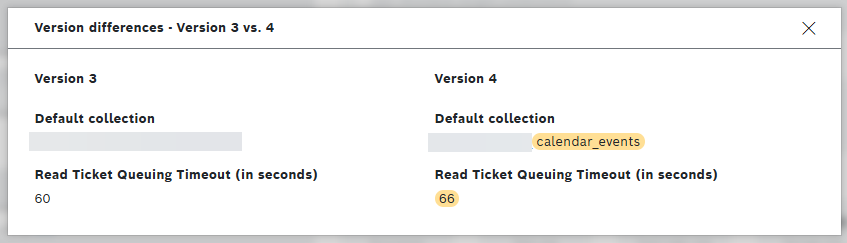
- Select a version to view using the View version button as described above:
- To edit the version, select the Edit button:
→ The dialog that opens allows you to add or edit the name, which is in the Comment field, and optionally add or remove tags of the version: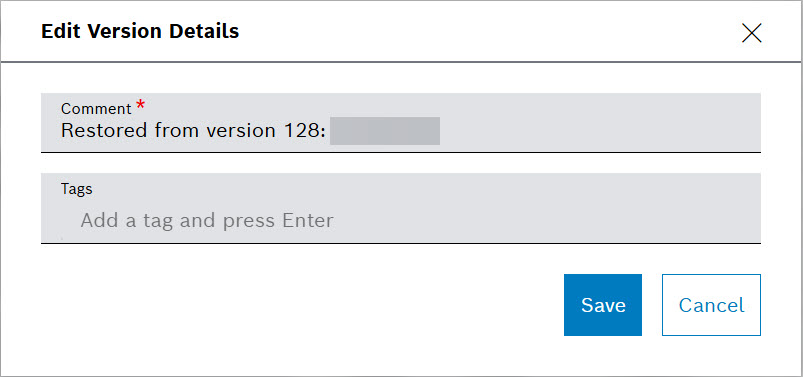
- To restore the selected version, choose the Restore button:
→ The following dialog appears: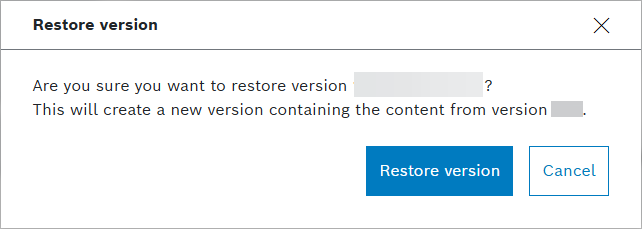
- To examine in a read only mode previous versions, select the View version button: