In Credentials menu, the admin of the project configures and manages the credentials centrally. Learn more in the following topics:
Prerequisites
To execute the following actions, you have to be assigned to the Admin role or higher.
Proceed as follows
- Click the Admin menu item to unfold it.
- Click the Credentials sub-item.
→ The view displays the information of your project credentials IDs and their Description, their HTTP Service or Environment Type, the type of their Authentication, and the Actions you can do with the credentials: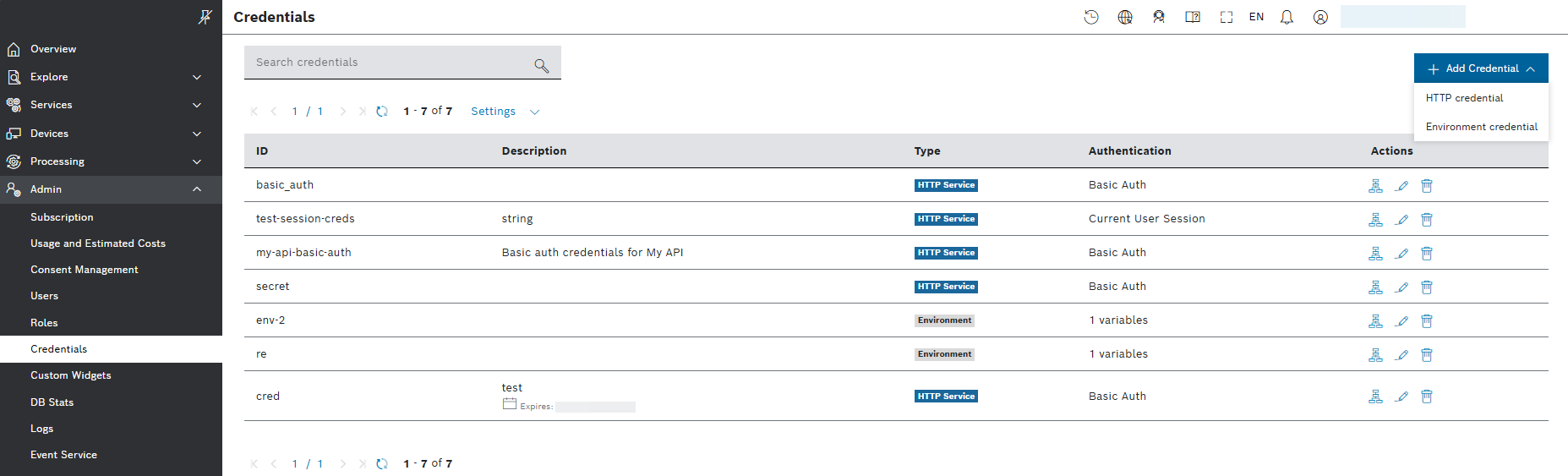
Adding Credentials
- From the upper right corner, select the
 Add Credential button to add a credential to your list:
→ The drop-dow menu opens to provide you two options to choose from – HTTP credential and Environment credential. - If you select to add HTTP credential, the following dialog opens:
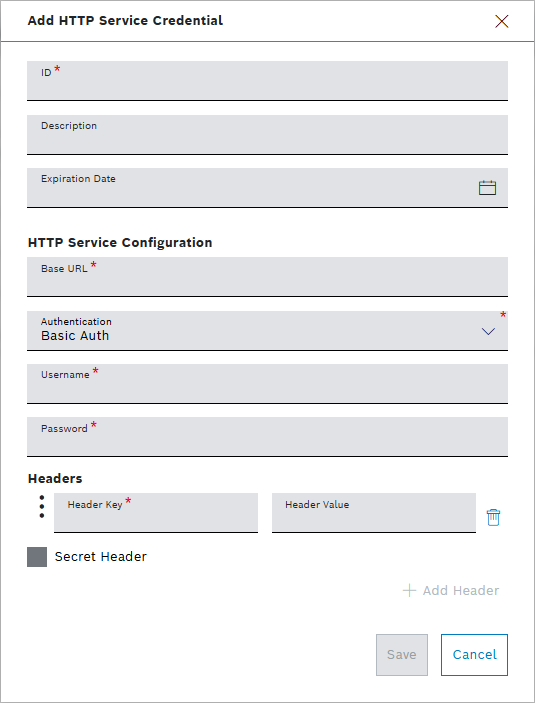
- In the required ID field, enter a technical name that can be used to reference the credential by only alphanumeric, hyphen, underscore symbols with minimal length of 3, and maximal length of 32.
- Optionally, in the Description field, enter a text description which gives more information about the credential.
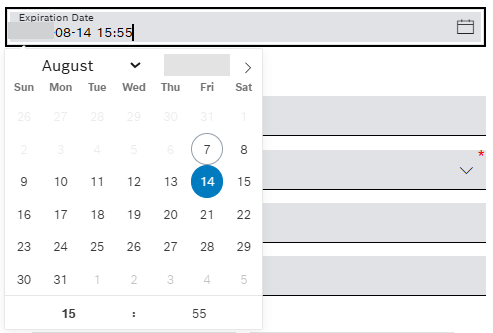
- Optionally, in the Expiration Date field, define the expiration date and time of the credential:
- In the HTTP Service Configuration, provide the Base URL.
- From the drop-down list of the Authentication field, select the authentication type:
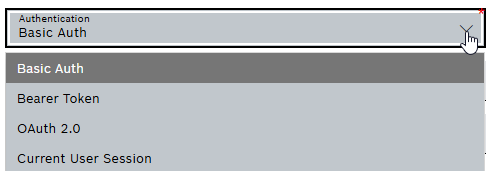
- For Basic Auth:
- In the Username field, enter the username.
- In the Password field, enter the password.
- For Bearer Token:
- In the Token filed, enter the token.
- For OAuth 2.0:
- In the Access Token URL, enter the access token URL.
- In the Client ID, enter the client ID.
- In the Client Secret, enter the client secret.
- Optionally, in the Scope field, enter the scope.
- For Current User Session, the current settings are used.
- For Basic Auth:
- In the Headers pane, enter a key and a value to specify the header information of the external system.
- Activate the Secret Header checkbox to flag the header as secret.
- If you select to add Environment credential, the following dialog opens:
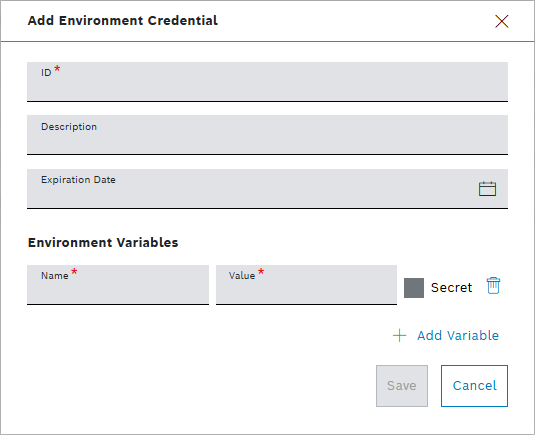
- In the required ID field, enter the ID of the credential. ID must be 2-202 characters, start and end with a lowercase letter or digit, and contain only lowercase letters, digits and hyphens.
- Optionally, in the Description field, enter a text description which gives more information about the credential.
- Optionally, in the Expiration Date field, define the expiration date and time of the credential.
- In Environment Variables, provide the Name and the Value for a variable, which you can hide when selecting the Secret checkbox.
- Select the Add Variable button and enter its name and value in the new row. The total number of variables will appear in the Authentication column of the Credentials table.
- Select Save button to confirm your input.
Actions with credentials
- From the Actions column, you can chose from the three icons of
 ,
,  , and
, and to:
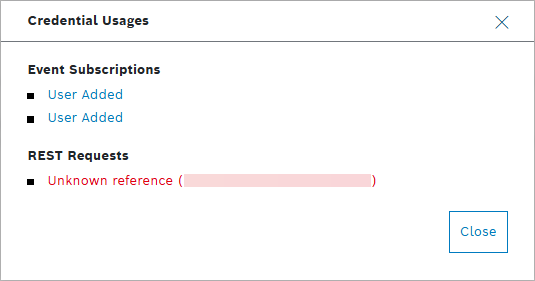
to:- Check the usage of a selected credential:
- Edit the credential:
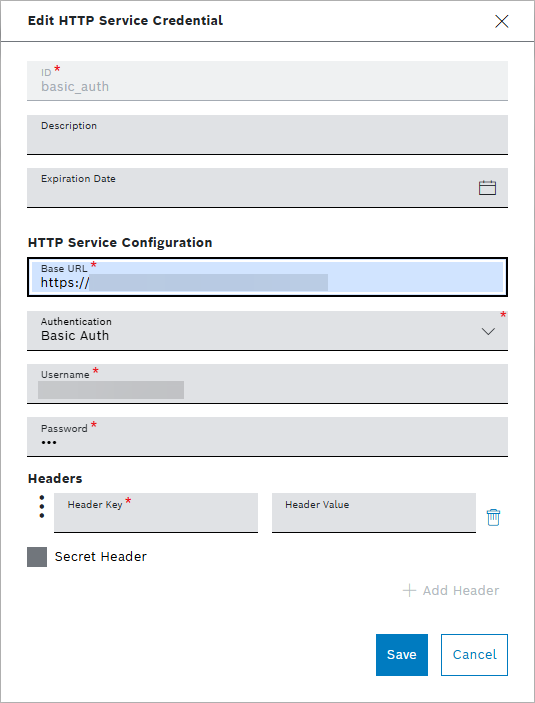
In the Edit HTTP Service Credential dialog, when the Base URL is changed, all credential details are reset – token, username, pass and etc.
- Delete the credential:
→ Confirmation dialog appears: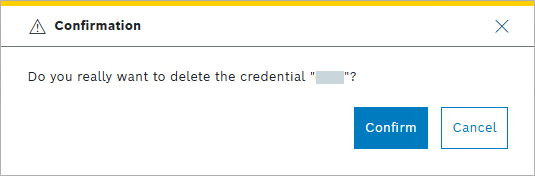
- Check the usage of a selected credential: