A container step is a successor of the custom step and offers more flexibility on how you provide your custom processing logic. The fundamental idea is built on docker containers.
Advantages:
- Pick any programming language. You are no longer restricted to just python or java.
- Run as many processes inside the container as you need.
- Provide environment variables at the step level.
- Provide as much resources as you want for this step alone.
Limitations:
- The container step feature is not available for free plans.
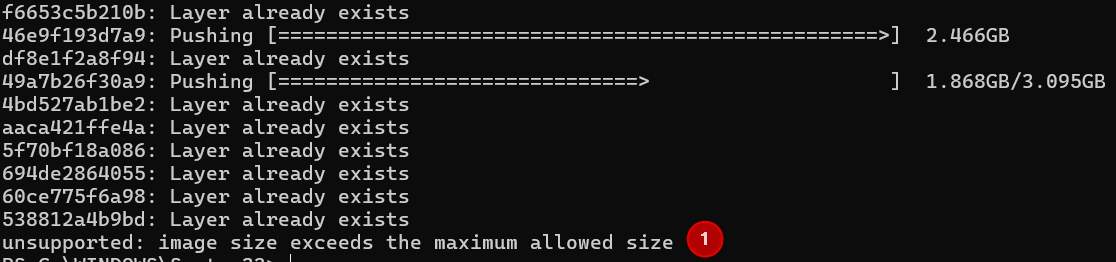
- Image size cannot exceed 10GB, or it will be rejected during push.
Pushing the docker images
- Prepare your docker image as shown in the Java or Python examples, using any programming language.
Important:
- Ensure the socket connections are implemented as shown in the examples – the
exchangeDataHolderis provided and accepted back through socket channels.
- Ensure the socket connections are implemented as shown in the examples – the
- Tag your images in the right format. For example, if the image was built using the command 'docker build -t custom-step-echo:latest', then it must be tagged in the format below:
docker tag custom-java-step-container:latest bosch-iot-insights.com/imageregistry/<project>/custom-java-step-container:latest - Create an API user with admin role.
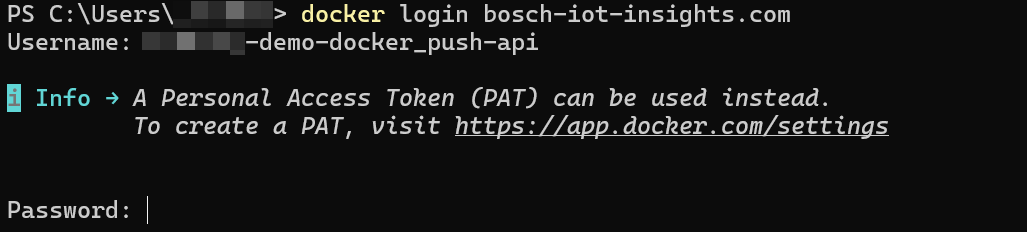
- Login through the docker CLI using the above credentials:
Push the tag using the docker push command:
docker push bosch-iot-insights.com/imageregistry/<project>/custom-java-step-container:latest
Configuring and using containers in a pipeline
- Create a pipeline as described in Creating a pipeline guide.
- Add a Container step.
- Select the image that you have previously pushed.
- Ensure you provide enough resources to the image so that it can function without hitting memory limits.
- Configure the required environments you need. For example, the below screenshot shows that an environment named 'DEBUG_LOGS' is set.
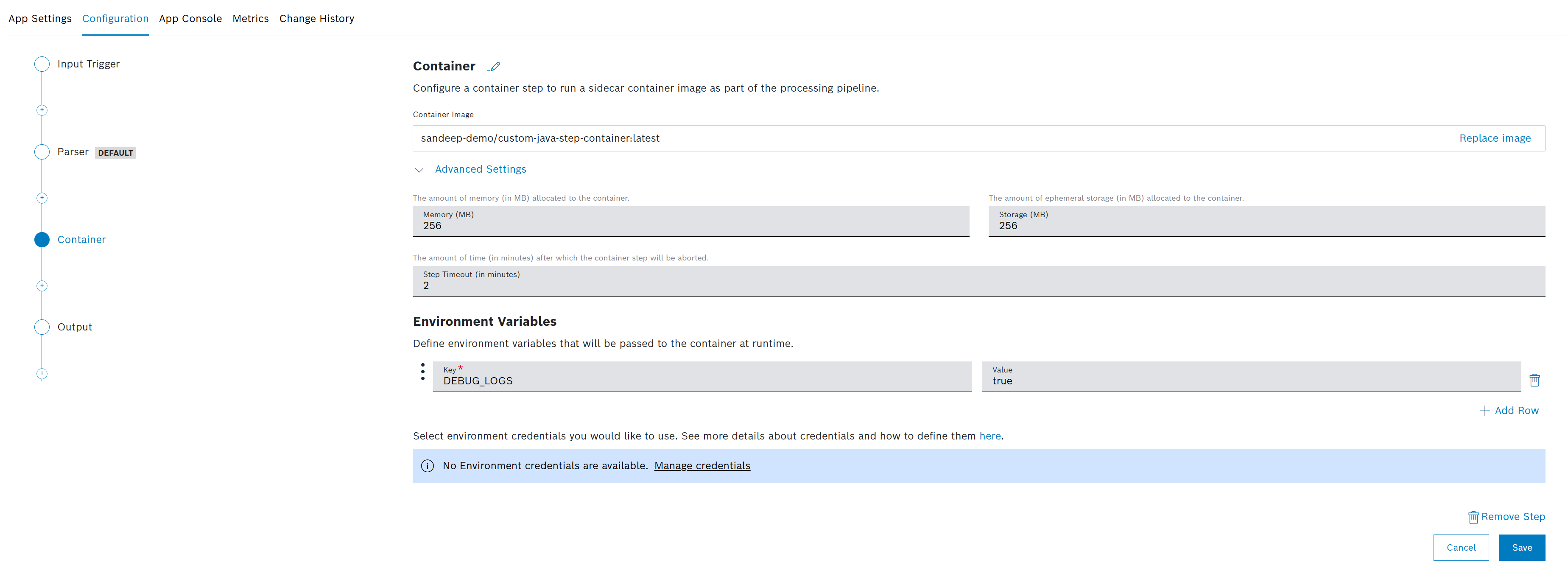
→ The platform will pass the environment variables to your container without any additional processing.
Deleting and restoring a container image
- The container images can be deleted from the step configuration UI by selecting the Replace image button:
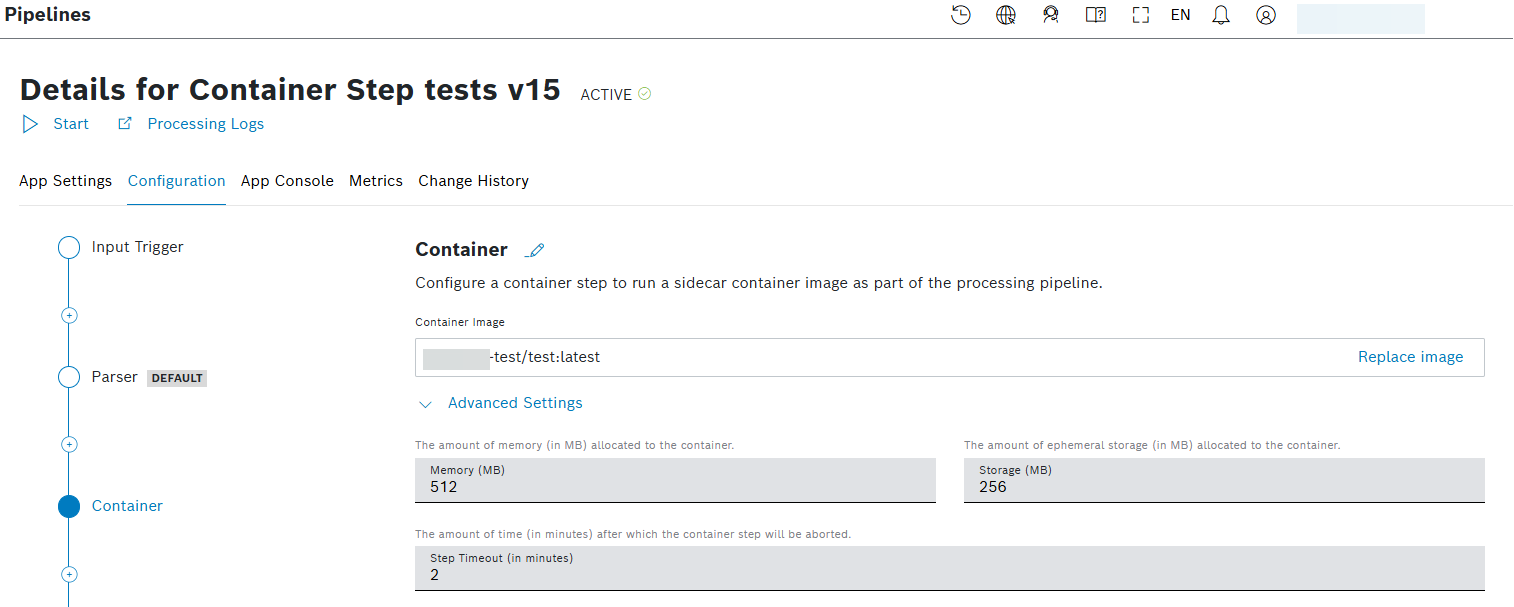
- To restore the container image, push the tag again, as described in Pushing the docker images section at the top.
Deleting unused container images
Images are automatically deleted when they are not used in the last 30 days, and are not part of an active pipeline. This is a hardcoded configuration which cannot be customized at the project level.
Troubleshooting
# | Error | Reason |
|---|---|---|
1 | I receive "Image size exceeds the maximum allowed size" after some layers uploaded successfully.
| This happens when the image that is being pushed is greater than 10GB. Since docker splits an image into different layers, we will not have the ability to detect the overall size upfront. Hence, the error message appears at a later stage after the sum of uploaded layers reaches the max allowed limit. |
2 | My login failed with the error message of "Error response from daemon: Get "https://bosch-iot-insights.com/v2/": unauthorized: authentication required" | This is likely the case where either usename, or password is wrong. |
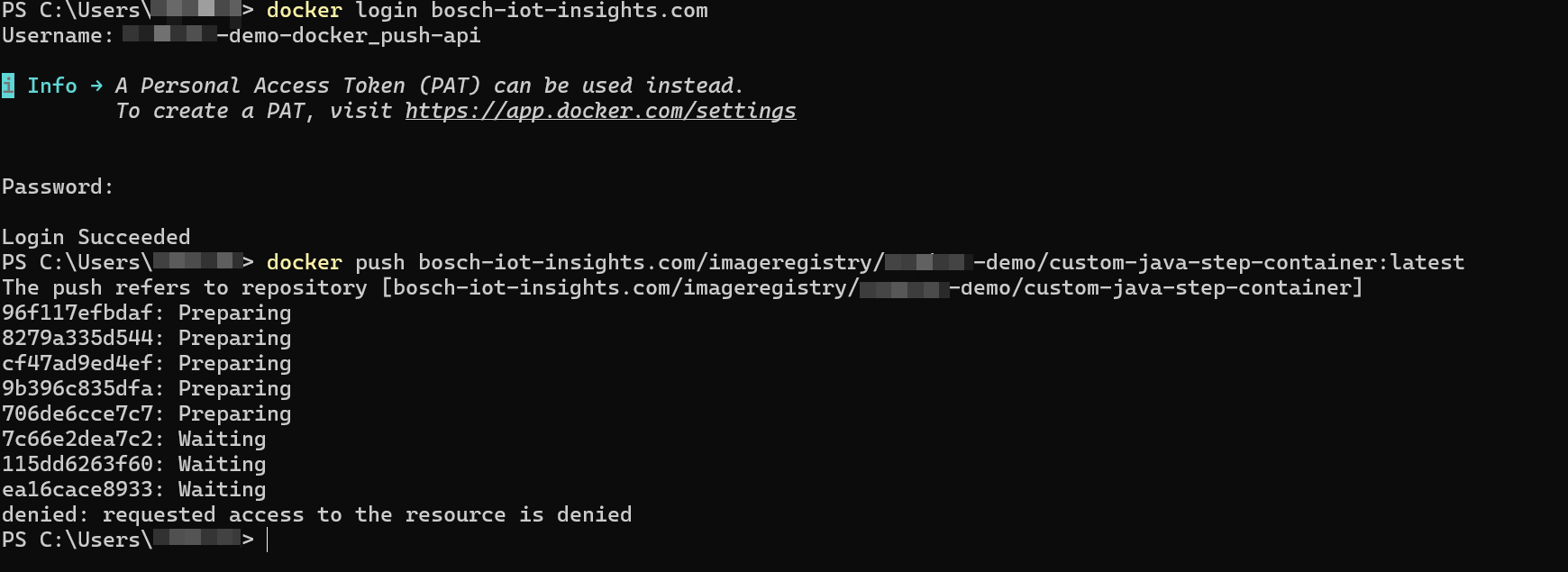
3 | My login was successful, but the push was rejected with "denied: requested access to the resource is denied" error. | This could happen for following reasons:
|
4 | I tried to login, but I was not asked for any credentials. I no longer wish to use that user. How to clean up my docker login to this domain?
| You can perform 'docker logout bosch-iot-insights.com', and login again with the user you wish to use.
|